

Processing Orders on Mobile
o Log in
o Select the “hamburger” in the top right-hand corner to reveal dropdown ( )
o Select the dropdown for “Orders”
o Select “New Order”
o Select the student/students you are ordering for
o Scroll left to revel the “Order” button for the day you want to order for
o Select “Order”
If you household is FRL you will see a coupon applied for the day. This IS NOT your order. Please select the food item and the coupon will be applied to the cost of that item.
o Select the Quantity of the item you want to order
o Select “Submit Order”
o The total of your current pending orders will display at the top of the screen. Please note that the funds will not be removed from your account until the school processes the orders for that day.
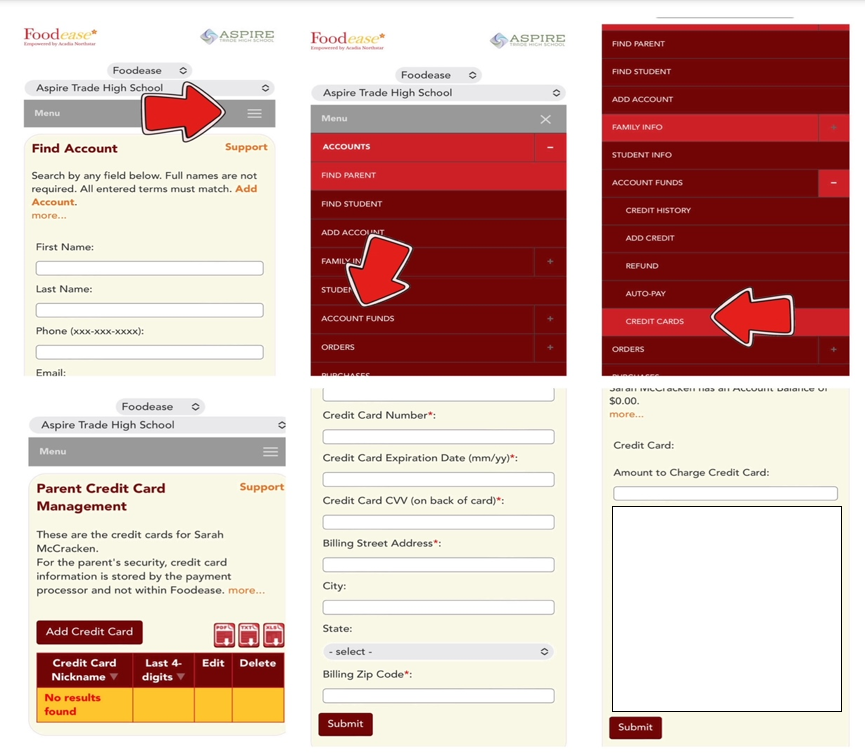
Adding Funds on Mobile
o Select the “hamburger” in the top right hand corner of the screen . (The hamburger icon is the one the arrow is pointing too in the first image).
o Select the dropdown for “Account Funds”
o Select “Credit Cards”
o Select “Add Credit Card”
o Enter all required card information and select “Submit”
o Select “Add Funds” from the “Account Funds” dropdown
o Enter the “Amount to Charge Credit Card”
o Select “Submit”
Reminder that funds can be used in any EasySuite product (Foodease, Purchasease) attached to your account.